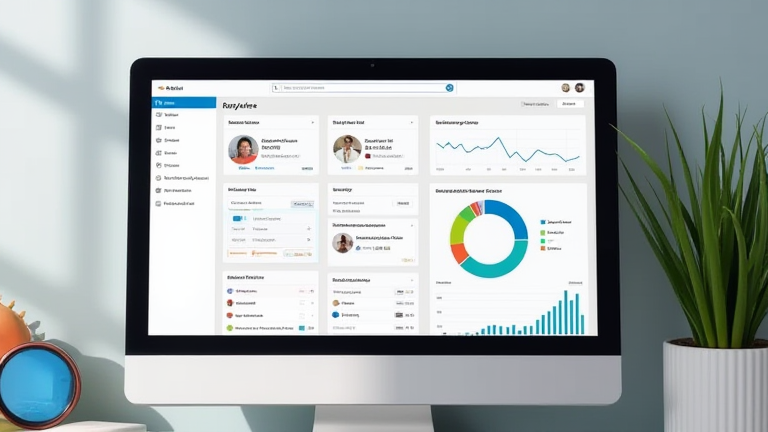
TL;DR: Create a main database with properties for task status, priority, and due dates, then link it to a dashboard page using filtered views. Customize the layout with blocks like headers, buttons, and embeds to centralize your workflows and maximize daily efficiency.
Step 1: Foundation Setup
Begin by creating a new page titled “Productivity Hub.” Inside, create a new database named “All Tasks.” This central database will serve as the backbone of your system. Add essential properties immediately: Status (Select: To Do, In Progress, Done), Priority (Select: Low, Medium, High), Due Date (Date), and Tags (Multi-select). This structure ensures every item has necessary metadata for filtering and sorting later in your workflow.
If you want to dig deeper, check out our guide on Green Hydrogen Fuel Cells: Powering the Future of Urban Tran.
Step 2: Create Filtered Views
Notion’s power lies in its views. Create a new view called “Today.” Set the filter so that “Due Date” is “On” “Today” OR “Before” “Today.” This automatically surfaces urgent tasks. Next, create a view named “This Week,” filtering for tasks due within the next seven days. Finally, add a “Completed” view to track progress without cluttering your active lists. These distinct views allow you to toggle between different timeframes instantly.
Step 3: Design the Layout
Return to your main dashboard page. Place the “Today” view prominently at the top for immediate focus. Below it, add a “This Week” view to plan upcoming work. Use a callout block to display a daily motivational quote or focus goal. Insert a toggle list for quick-access notes or links to other important documents. Ensure the visual hierarchy guides the eye from urgent to planned tasks, reducing cognitive load during your morning review.
Step 4: Enhance with Buttons and Automations
Add a button block labeled “Add New Task” that automatically creates a new entry in the “All Tasks” database. This saves time by pre-filling default properties. Consider adding a progress bar block linked to the number of completed tasks versus total tasks for the week. This visual metric provides immediate feedback on productivity and helps maintain momentum throughout the day.
Tips for Success
Keep your dashboard minimal. Too many views cause overwhelm. Use keyboard shortcuts to navigate quickly between pages. Regularly review your “Completed” view to clear finished items and maintain database performance. Customize the color coding of your properties to visually distinguish priorities at a glance.
FAQ
Q: Can I use this setup on mobile?
A: Yes, Notion works fully on mobile. However, complex dashboards may take longer to load on slower connections, so keep views simple for mobile optimization.
Q: How do I share this with a team?
A: You can share the specific dashboard page with teammates. Use permissions to control who can edit tasks versus who can only view the progress overview.
Q: What if I want to track projects, not just tasks?
A: Add a “Project” select property to your database. Create additional filtered views for each specific project to isolate tasks related to that initiative without losing the global overview.
Leave a Reply