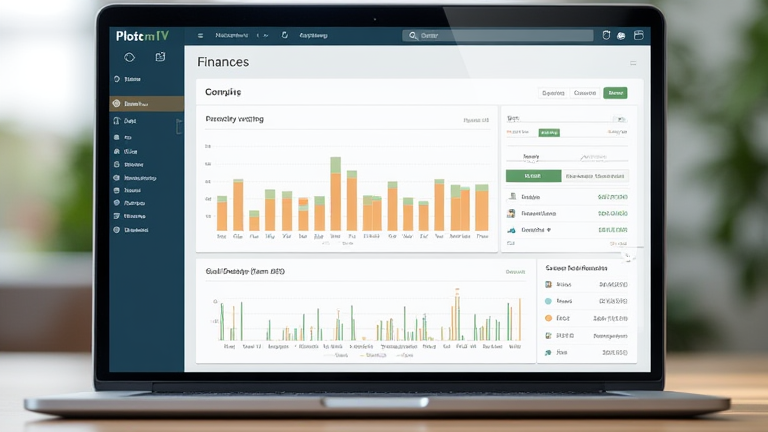
Notion Tutorial: Build a Personal Finance Dashboard in 10 Minutes
TL;DR: Create a single Notion page with a database for transactions and a synced view for budgeting. Add summary formulas to calculate total income and expenses for an instant financial overview.
Why Use Notion for Finance?
Notion offers a flexible, all-in-one workspace where you can combine databases, text, and visual elements. Unlike rigid spreadsheet applications, Notion allows you to customize your dashboard to fit your specific financial goals without complex setup. This guide will help you build a functional personal finance tracker from scratch in under ten minutes, giving you immediate insight into your spending habits and budget adherence.
If you want to dig deeper, check out our guide on Dex Experience: Key Facts You Need to Know.
Step-by-Step Setup
Start by creating a new page in your Notion workspace titled “Personal Finance Dashboard.” This will serve as your main hub. Inside this page, create a new database using the slash command “/table” or “/board.” Name this database “Transactions.” This database will store every piece of financial data, including purchases, income, and savings transfers. Ensure you choose the table view initially, as it is the easiest format for data entry and quick review. You will switch views later to create visual components for your dashboard.
Next, configure the properties of your “Transactions” database. Click on the “New Property” button to add the following fields: “Date” (Date type), “Category” (Select type), “Amount” (Number type), “Type” (Select type with options for Income or Expense), and “Note” (Text type). For the “Amount” property, select the currency symbol that matches your local currency. This structure ensures that every entry is standardized, making it easy to filter and analyze later. Consistency in data entry is crucial for accurate reporting, so take a moment to define your categories clearly, such as Rent, Groceries, Utilities, and Entertainment.
Now, let’s build the visual dashboard. Scroll to the top of your page, above the database. Use the slash command “/synced block” to create a synced block of the “Transactions” database. This allows you to display specific views of the database on your main dashboard page. Create a second synced block and change its view to “Board.” Configure this board view to group by “Category.” This gives you a visual Trello-style overview of where your money is going. Drag and drop cards between columns to see how your spending is distributed across different life areas.
To make the dashboard truly functional, add summary formulas. Below the synced blocks, create a new text block. Use the slash command “/formula” to create a simple calculation. Create a formula that sums all “Amount” values where “Type” is “Income.” Label this block “Total Income.” Repeat this process for “Expense” to create a “Total Expenses” block. Finally, create a third formula that subtracts “Total Expenses” from “Total Income” to calculate your “Net Balance.” These three numbers provide an immediate, high-level view of your financial health at a glance.
Pro Tips for Optimization
Customize the color of your dashboard blocks to enhance readability. Use green for income-related blocks and red for expenses to create an intuitive visual cue. You can also add a cover image to your page for a more polished look. Remember that you can filter views within the synced blocks. For example, you can set your board view to only show items from the current month, keeping your dashboard clean and relevant. This feature is particularly useful for tracking monthly budgets without the clutter of historical data.
Consider adding a “Recurring” property to your database if you have regular bills. This allows you to quickly filter for recurring expenses and plan ahead. Notion’s flexibility means you can expand this system over time. Start simple with the basics outlined above, and add more complex features like debt tracking or investment monitoring once you are comfortable with the basic workflow. The key is consistency; logging your transactions regularly is more important than having a perfect dashboard.
FAQ
Q: Can I import my bank data automatically?</strong
Leave a Reply