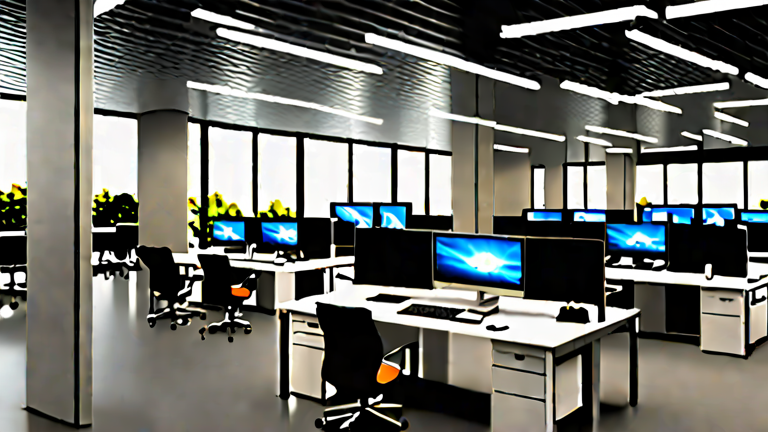
TL;DR: Spatial computing transforms hybrid offices by allowing employees to project high-fidelity, multi-screen workspaces onto any flat surface, eliminating the need for physical laptop docking. This shift reduces hardware dependency while enhancing collaboration through shared, immersive digital environments accessible from anywhere.
Step-by-Step Implementation Guide
Transitioning from traditional laptop-centric setups to spatial computing requires a phased approach to ensure productivity is maintained while new workflows are adopted. Begin by assessing your office infrastructure. Ensure that your workspace has sufficient ambient light and clear, uncluttered surfaces where virtual displays will be projected. Most spatial computing headsets rely on inside-out tracking, meaning physical obstructions can disrupt the experience. Next, pair your spatial headset with your primary computer. Modern devices often connect via low-latency wireless links or direct USB-C connections. Verify that your operating system is compatible with the spatial software, as you will need to install specific drivers and environment calibration tools. Once connected, perform the initial room mapping. Walk through your office space, allowing the device to scan walls, desks, and furniture. This creates a persistent digital map, ensuring that your virtual windows remain anchored to the same physical location every time you put on the headset.
If you want to dig deeper, check out our guide on 10 Best Mechanical Keyboards Under $150 for Programmers and .
Now, configure your virtual workstation. Most spatial computing platforms allow you to create multiple virtual monitors. Position these screens at comfortable angles, typically 10 to 15 degrees off-center to reduce neck strain. Adjust the distance of these screens to match your preferred viewing distance, usually between 20 and 30 inches. Test the latency and clarity by opening a text document and a video player. If the image appears blurry or laggy, check your network connection or move closer to your physical computer if using a tethered setup. Finally, integrate collaboration tools. Invite colleagues to shared spatial sessions. This feature allows remote team members to see and interact with the same virtual whiteboards and documents in real-time, fostering a sense of presence that standard video calls often lack.
Pro Tips for Success
Start with short sessions to build comfort. Wearing a headset for eight hours can cause fatigue, so begin with one-hour blocks and gradually increase duration. Use voice commands to navigate menus instead of relying solely on hand tracking, which can be tiring over long periods. Keep your physical workspace tidy; cluttered desks can confuse the tracking sensors, leading to unstable virtual displays. Additionally, maintain regular software updates to benefit from improved tracking algorithms and bug fixes.
FAQ
Q: Do I still need a physical laptop for spatial computing?
A: Yes, initially. Most spatial computing systems act as a display layer for existing hardware, so you still need a computer to run your applications, though the physical footprint is minimized.
Q: Is spatial computing suitable for all types of office work?
A: It is ideal for knowledge workers, designers, and developers who benefit from large screen real estate. It may be less practical for tasks requiring frequent physical interaction with hardware or high-precision mouse work.
Q: How does this impact office real estate costs?
A: It can reduce costs by allowing for denser seating arrangements. Since each employee no longer needs a large, dedicated desk with multiple physical monitors, offices can optimize square footage for more collaborative spaces.
Leave a Reply