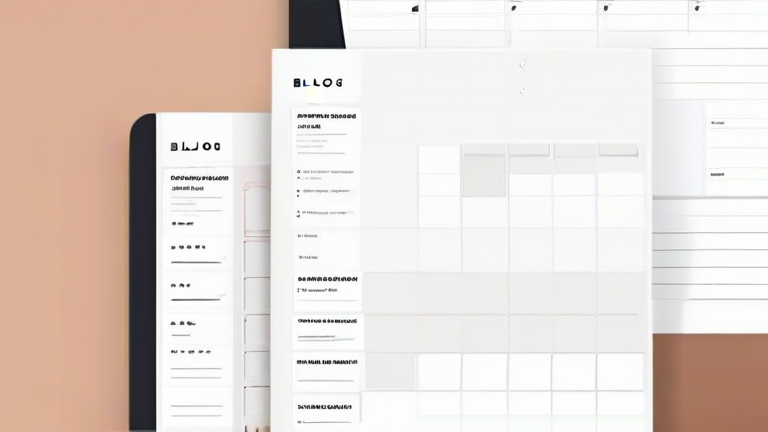
Notion Template: Build Your Ultimate Weekly Planner in 10 Minutes
TL;DR: Create a board view database with seven columns for each day, then add a “To-Do” property to track tasks. Customize your layout with toggles and filters to prioritize high-impact activities efficiently.
Step 1: Initialize Your Database
Open your Notion workspace and click the plus icon to create a new page. Name it “Weekly Planner.” Inside this page, type “/database” and select “Board” from the list. This board view is ideal for visualizing your week at a glance. Rename the default “Name” column to “Task” to reflect the content you will be managing. This foundational step ensures you are working within a structured framework that supports both list and calendar views later on.
If you want to dig deeper, check out our guide on 10 Lifestyle Hacks to Boost Your Daily Happiness.
Step 2: Structure Your Days
By default, Notion may create a single group. You need to create seven distinct groups representing Monday through Sunday. Click “New Group” seven times to generate these columns. Rename each group accordingly. This segmentation allows you to drag and drop tasks between days easily. Ensure the order is correct to maintain a logical flow for your weekly routine. This visual separation is crucial for managing workload distribution and preventing burnout by highlighting days that might be overly saturated with commitments.
Step 3: Add Essential Properties
Click the plus icon next to the “Task” column to add properties. Add a “Status” select property with options like “Not Started,” “In Progress,” and “Done.” Next, add a “Priority” select property with colors for High, Medium, and Low. Finally, include a “Date” property to link tasks to specific days if you prefer a calendar view later. These properties provide the metadata necessary for filtering and sorting your tasks based on urgency and completion status, making your planner dynamic rather than static.
Step 4: Customize and Automate
Use the filter function to show only “Not Started” items for today. Create a toggle list inside each task for subtasks. Add a formula property if you want to calculate progress percentages automatically. Customize the page background and add a header image for aesthetic appeal. Set up a weekly template button that clears the board every Sunday to start fresh. This final step transforms a basic list into a powerful, reusable system that saves time every week.
Tips for Success
Keep your tasks atomic; break large projects into smaller, manageable chunks. Use color coding consistently to maintain visual clarity. Review your planner every morning for five minutes to adjust priorities. Avoid overfilling your schedule; leave white space for unexpected events and deep work sessions. Regularly archive completed tasks to keep your workspace clean and focused on current objectives.
FAQ
Q: Can I sync this with my calendar?
A: Yes, you can connect your Notion database to external calendars using Notion’s native calendar view or third-party integrations like Zapier.
Q: Is this template mobile-friendly?
A: Absolutely, Notion’s interface is fully responsive, allowing you to manage your board view seamlessly on any smartphone or tablet.
Q: How do I reset the planner weekly?
A: Duplicate the current page, delete the old tasks, and rename the new page with the current week’s dates for a clean start.
Leave a Reply